Your application code lives in Git. Your tests should too — reviewed in pull requests, diffed commit by commit, greppable from your editor. TestVibe generates and runs Playwright tests in the cloud, but that doesn't mean your test files have to stay locked in a SaaS. Test Files Sync mirrors a project's test files — Gherkin features, generated Playwright specs, and configs — to a Git repository you own, and it works in both directions: edit in TestVibe and the change is committed to your repo; commit to your repo and the change flows back into TestVibe.
Here's how to set it up, what actually lands in your repo, and how the sync behaves when both sides change.
Why version-control your tests at all?
A few reasons teams turn this on:
- Code review for tests. Generated Playwright specs are real code. Syncing them to your repo means teammates can review test changes the same way they review app changes.
- History and blame. Settled changes can be coalesced into a sync commit; not every intermediate edit gets a separate commit. When a test starts failing,
git logtells you what changed and when. - Tests next to the code they test. The sync is scoped to a dedicated folder (
testvibe/by default), so it can live inside your existing app repo without touching your application code. One clone gets a developer both the app and its test suite. - Edit with your own tools. Prefer your IDE over a web editor? Edit the
.featurefiles locally,git push, and the changes appear in TestVibe.
One thing sync does not change: your project's home. TestVibe's cloud stays canonical — features, generated tests, configurations, and run history always live in your TestVibe project. The repo is a live, two-way mirror of the test files, not a migration.
Two panels, two very different connections
TestVibe has two Git settings panels, and it's worth keeping them straight:
| Panel | Direction | What it holds |
|---|---|---|
| Settings → App Repository | Read-only | Your application's own source code. TestVibe reads it to ground AI generation and map coverage. |
| Settings → Test Files Sync | Two-way | This project's own test files — features, specs, Playwright configs. TestVibe writes and reads them. |
They're independent, both optional, and they can even point at the same physical repository — sync stays inside its own subfolder and never writes to your app code. Connecting an App Repository does not put your test files in that repo, and the sync engine scopes writes to its configured subtree; the underlying repository credential may have broader permissions.
This guide is about the second panel.
Setting up Test Files Sync
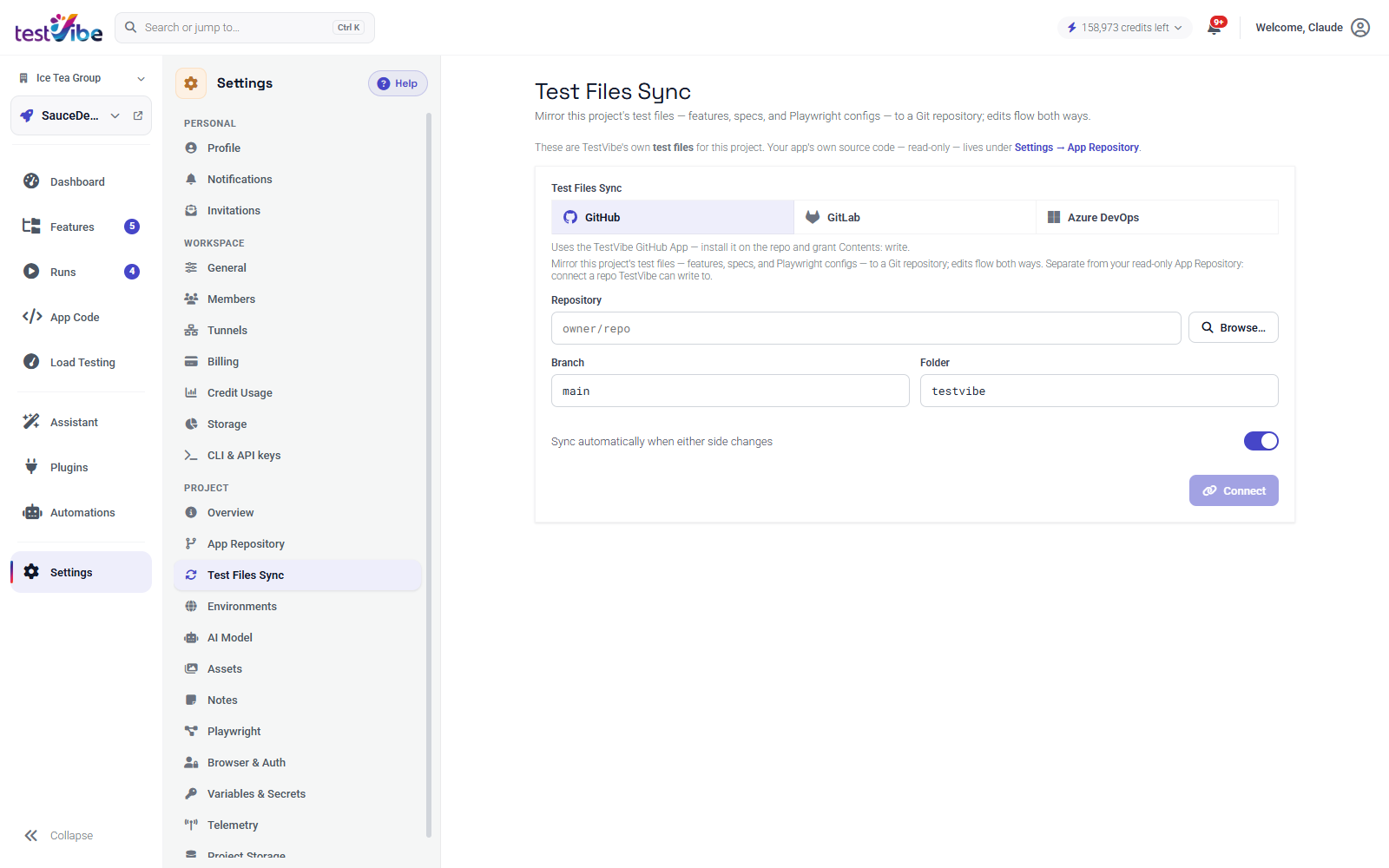
- Open project settings, select Connections, then expand Test files.
- Pick a provider — GitHub, GitLab, or Azure DevOps are all supported for two-way sync.
- GitHub connects through the TestVibe GitHub App. Write access to the target repository is requested only when you enable sync — never at sign-in, which is identity-only.
- GitLab and Azure DevOps reuse the Git connections you set up under Settings (GitLab via OAuth, Azure DevOps via a personal access token with code read & write scope).
- Choose the target repository from the picker.
- GitLab and Azure DevOps only: register the inbound webhook. The panel shows the webhook URL and a secret with copy buttons, plus per-provider instructions — paste them into your repo's webhook settings so pushes notify TestVibe immediately. GitHub handles this automatically through the App. (No webhook yet? Repo-side edits still arrive on the next sync cycle or a manual Sync now — the webhook just makes it instant.)
That's it. The first sync figures out the right seed direction automatically: if your repo's sync folder is empty, TestVibe exports the project into it; if the repo already has TestVibe content and the project is empty, it imports; if both sides have content, they're merged by identity rather than one side clobbering the other.
After connecting, inspect the selected repository, branch, sync folder and reported status. Review and resolve any conflicts before relying on synchronized files.
What lands in your repo
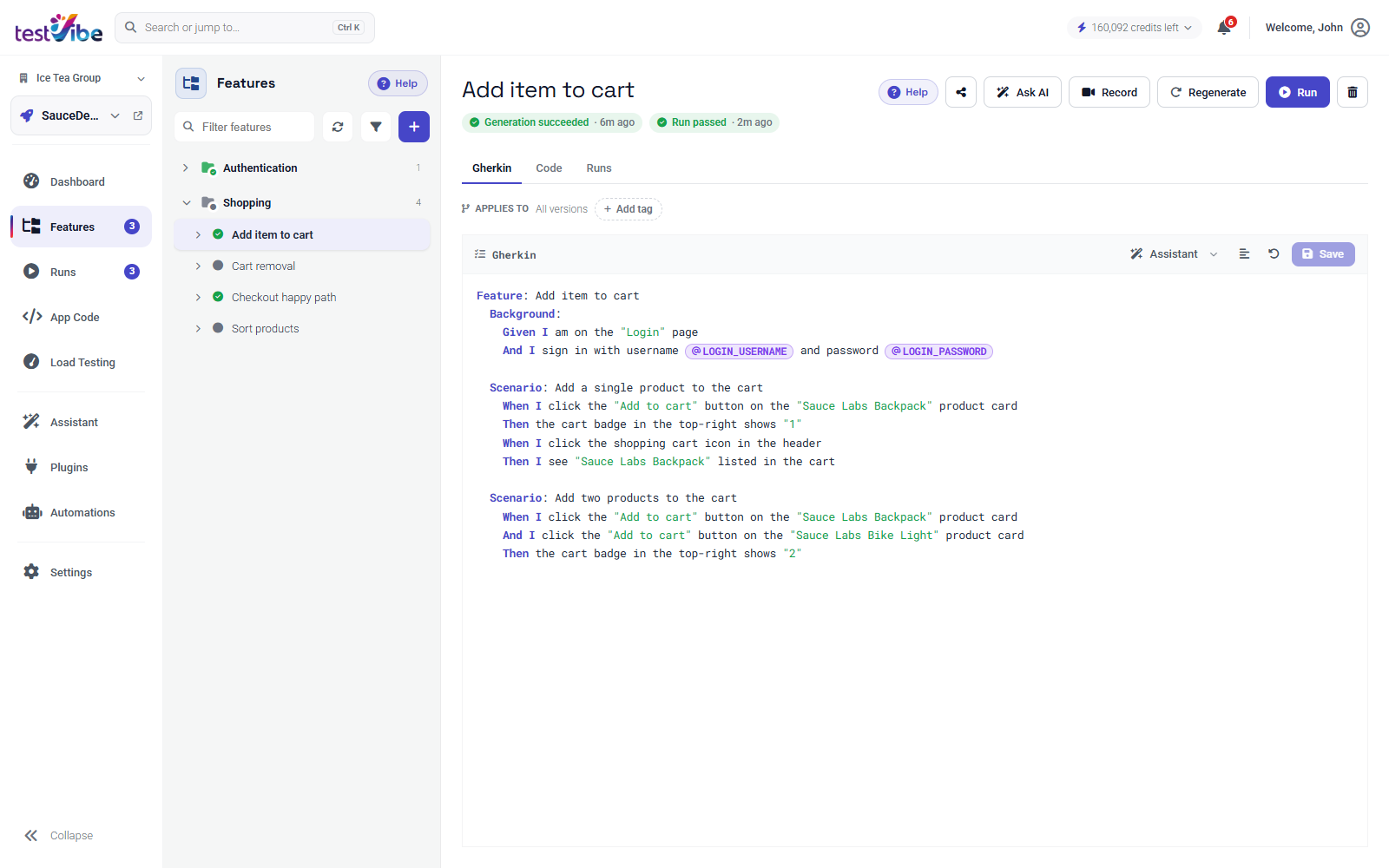
The mirror isn't a data dump — it's a runnable Playwright project, laid out under the sync folder:
testvibe/
  Features/
    Shopping/
      _group.yaml              # group metadata
      add-item-to-cart.feature # Gherkin — the readable source of truth
      add-item-to-cart.spec.js # the generated Playwright spec
  Configurations/
    Default.config.js          # browser/viewport/run settings
  package.json                 # scaffolding: run the suite locally
  playwright-runner.js
  Tools/
  README.md
Each feature group is a folder; each feature is a .feature file (the Gherkin you author) sitting next to its generated .spec.js. Every .feature carries a small identity header comment, which is how a rename shows up in Git as a move rather than a delete-plus-create.
Two scoping rules worth knowing:
- Stored secret values are not synced to Git. Generated files should use names and runtime references. Values are injected into execution environments; review authored files before syncing so a manually pasted credential is not exported.
- The scaffolding is write-only. The runner,
package.json, and tooling are emitted by TestVibe so the folder is clone-and-run, but edits to those files aren't pulled back — they're regenerated, not authored content.
This is the same canonical layout the project's Export → Download Zip produces, so a downloaded archive and a synced repo folder are interchangeable.
How sync behaves
TestVibe → repo (export)
Edit a feature, rename a group, regenerate a spec — shortly after the change settles, TestVibe commits it to your repository. Commits are authored by a dedicated sync bot identity, so your repo history clearly distinguishes "the team edited this in TestVibe" from human pushes, and TestVibe recognizes its own commits and never re-imports its own echo.
Repo → TestVibe (import)
Push a commit that touches the sync folder and the webhook triggers an inbound sync: changed .feature files, specs, and configs are applied to the project. Because files carry stable identities, moves and renames round-trip cleanly. Content that didn't change is left alone — the engine compares content hashes, to reconcile unchanged content; concurrent edits and errors still need inspection.
Conflicts
Most concurrent edits never conflict: syncs are serialized per project, and each change becomes an ordered commit. A true conflict — the same feature edited on both sides between sync cycles — is handled explicitly rather than silently merged:
- Auto-sync pauses for the project.
- The Sync panel surfaces the conflicted item with a choice: keep the TestVibe version or keep the repo version.
- Compare and preserve both versions before resolving. Repository commits remain in Git history, but an unsynced TestVibe edit is not guaranteed to already exist as a Git commit.
No line-level auto-merge guessing at intent, no last-write-wins data loss. You decide after reviewing both versions.
Run it locally, too
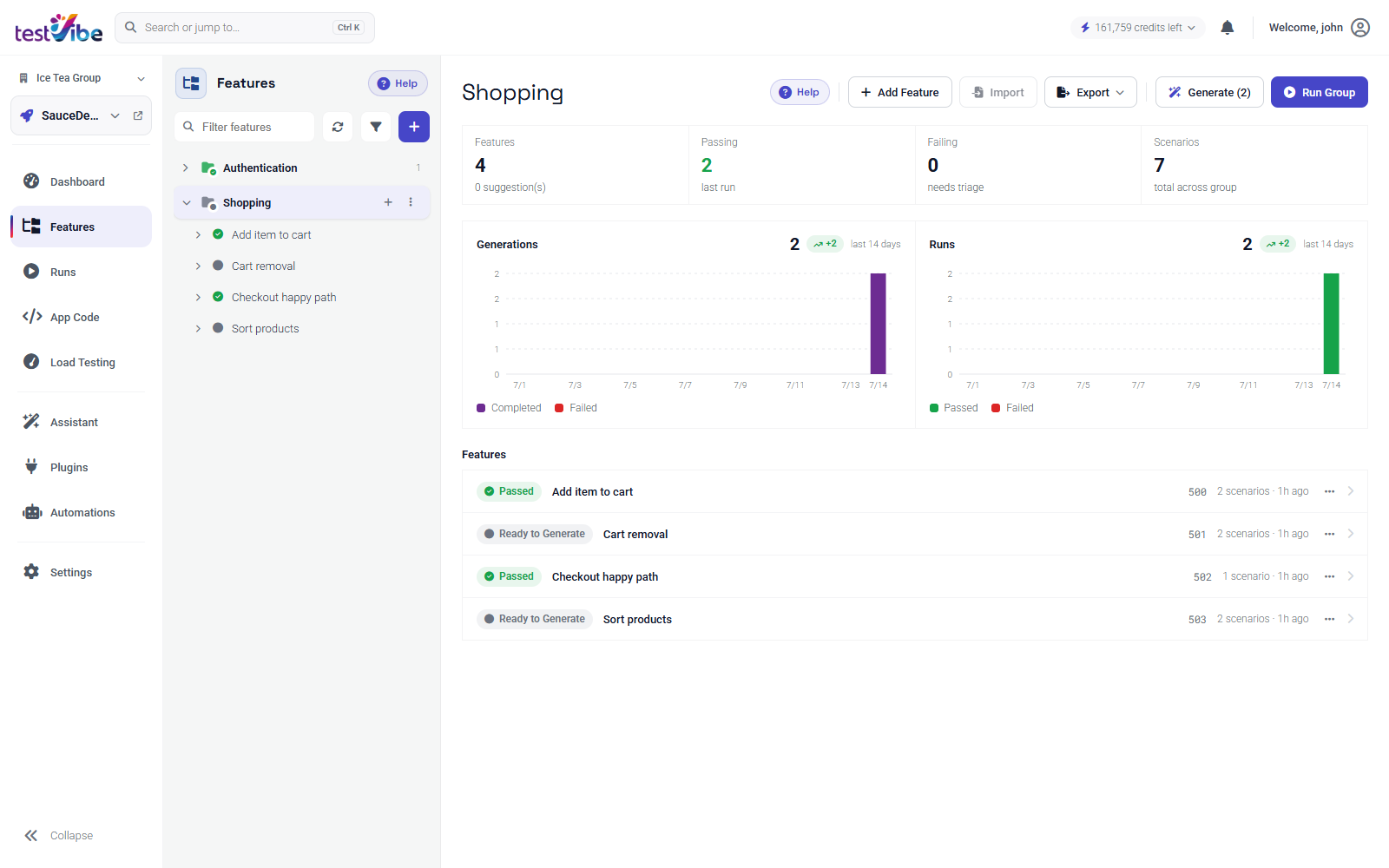
Because the synced folder is a complete Playwright project, a teammate can clone the repo, install dependencies and browsers, and supply target/configuration values before running a spec:
npm install
npx playwright install
# Set BASE_URL and required secret/environment values for your test target.
npm run runner -- --tests Features/Shopping/add-item-to-cart.spec.js
Note the bundled runner is used here, not stock npx playwright test — and specs that rely on plugin secrets still need those values, which live only in TestVibe's cloud.
Wrap-up
Test Files Sync gives you the best of both worlds: TestVibe's AI generation, cloud sandboxes, and results UI — with your test files version-controlled in the repo where your team already works. Setup is a few clicks (plus one webhook paste for GitLab/ADO), the layout is a clean, runnable Playwright project, and conflicts are surfaced explicitly for review.
TestVibe is in early access — get early access to connect a repo and watch your first sync commit land. More detail lives in the docs.