A CI notification setup can become noisy: someone mutes the channel. Passing runs, nightly regressions, and load tests all fire the same message, and within a week the one alert that actually mattered scrolls past unread. Too many low-value alerts can obscure failures; missing delivery is another failure mode to check.
TestVibe's notification model is built to avoid that ending. This guide walks through the three decisions that keep alerts worth reading: who gets them, where they land, and which outcomes are loud.
Notifications are per-user, not per-project
The most common reason team channels die is that they're shared and undifferentiated. One firehose feeds everyone, so everyone tunes it to the same low setting — usually off.
In TestVibe, notifications are a Personal setting. Open Settings → Notifications and you're tuning your delivery, not the whole team's. The QA lead who wants every generation and every run can have it; the backend engineer who only cares when their staging suite goes red can have that instead. Personal preferences apply to that user; a shared destination can still receive messages configured by multiple people.
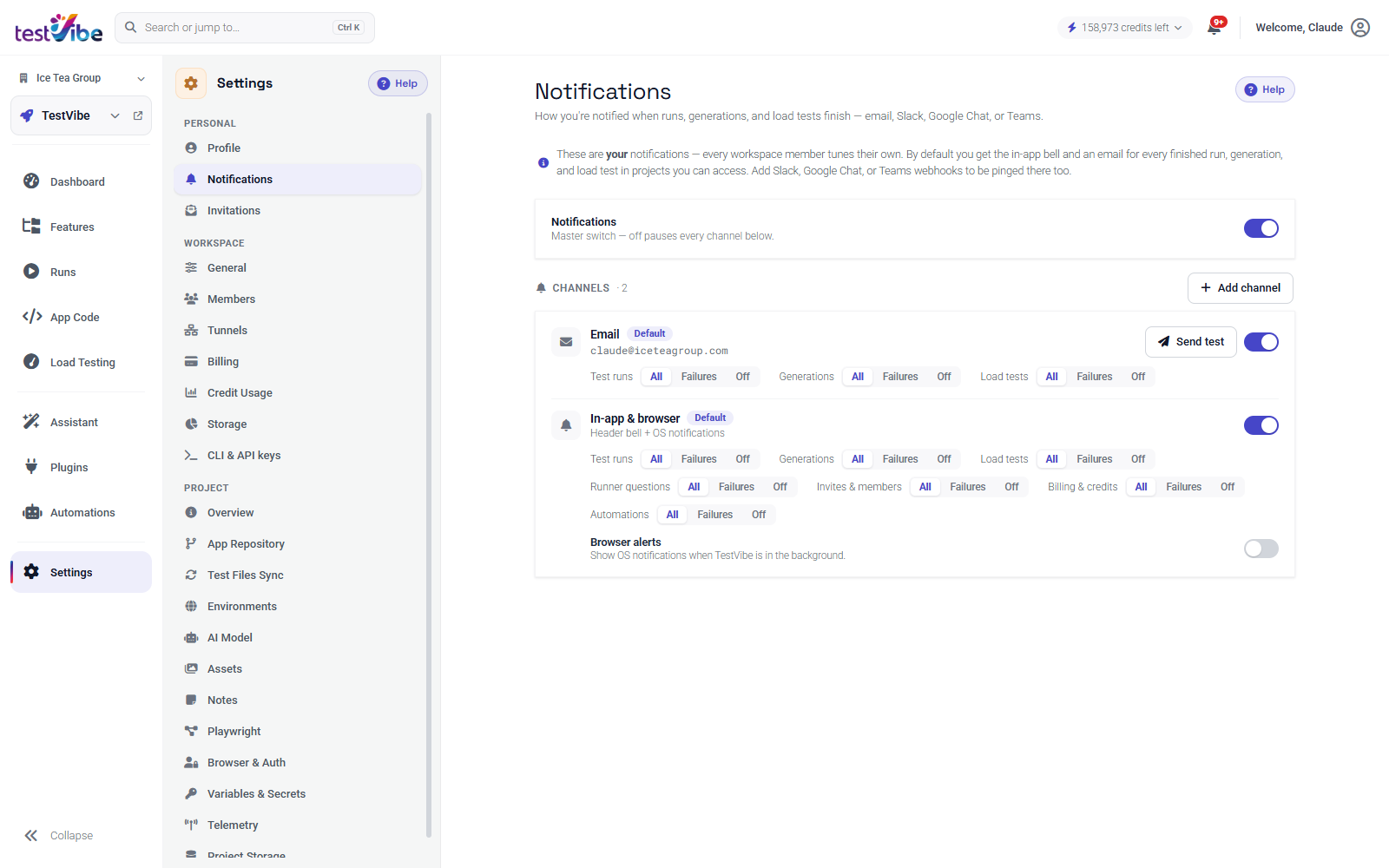
Two channels always exist and can't be removed: In-app & browser (the header bell plus opt-in OS alerts) and Email (your account address, or a custom one). At the very top sits a master switch — flip it off and every channel below pauses at once, which is the honest "I'm on vacation" button instead of a filter you'll forget to undo.
Route each outcome to the right place
Different alerts deserve different urgency, and urgency maps to channel. Current Personal settings manage email delivery and in-app/browser preferences. The default account email exists automatically; additional email addresses can be managed separately. For run, generation and load-test outcome emails, choose All, Failures or Off explicitly.
Legacy Slack, Google Chat and Teams records can remain stored, but the current settings mutation accepts email channels only. Use supported project plugins or automation actions for team chat delivery; those have their own configuration. A scheduled digest is not promised by outcome notifications.
Choose failure-only deliberately
Here's the setting that does most of the work. Every category, on every channel, has three states: All, Failures, or Off.
- All — every finished run, generation, or load test, pass or fail.
- Failures — only the ones that went red.
- Off — silence for that category on that channel.
"All" is the setting that trains people to ignore you. A suite that passes 200 times before it fails once has sent 200 messages that taught the reader this channel is safe to skim. Set the category to Failures and that same channel stays quiet until the 201st run — the one you actually needed to see. Signal survives because it's rare.
The reason "All" exists at all is that some workflows genuinely want confirmation: a compliance-driven nightly run where "it finished green" is itself the record you keep. But treat it as the exception. For most teams, most channels, failure-only is the setting that keeps the channel un-muted a month later.
Per-category control, so one noisy source can't drown the rest
Blanket on/off is too coarse. If a chatty generation loop forces you to mute the whole integration, you lose the run failures buried in the same stream.
TestVibe splits notifications into independent categories so you can be loud and quiet at the same time. The In-app & browser channel exposes the full set — Test runs, Generations, Load tests, Runner questions, Invites & members, Billing & credits, and Automations — each with its own All / Failures / Off. Email delivery covers: Test runs, Generations, and Load tests.
So you can set Generations → Off for an email channel while keeping Test runs → Failures there, and still watch Billing & credits → All on the bell. The noisy source gets silenced without taking the important one down with it.
One more knob worth knowing: Browser alerts is a separate opt-in toggle, and OS notifications only fire when the TestVibe tab is in the background. You won't get a desktop popup for something already on your screen.
A setup that lasts
A configuration that's still un-muted next quarter usually looks like this: bell on for everything so the in-app feed stays complete, email set to Failures for runs and load tests, with a separately configured project integration if team chat delivery is needed. Automations inherit all of this — a scheduled nightly suite notifies exactly the way a manually started run does, so your filters keep working without a second setup.
Tune it once per person, lean on failure-only, and the alerts stay something people read instead of something they mute. See the Notifications docs for channel and category details, or get early access to set up your own.