A nightly regression pass can give useful release feedback. It runs while nobody is watching, against a quiet environment, and hands you a single verdict before the first standup. The catch is that most teams either never set it up or set it up badly — the suite runs, but nobody trusts the result and every green night still pings twelve people at 2 a.m.
This is a working playbook: what to schedule, how to make a green night silent, the triage ritual that keeps morning short, and the habits that keep nights green over time.
What to schedule
Start with one scheduled automation, not five. In TestVibe an automation pairs a trigger with an action, so a nightly run is a schedule trigger driving a Run features (a suite) action.
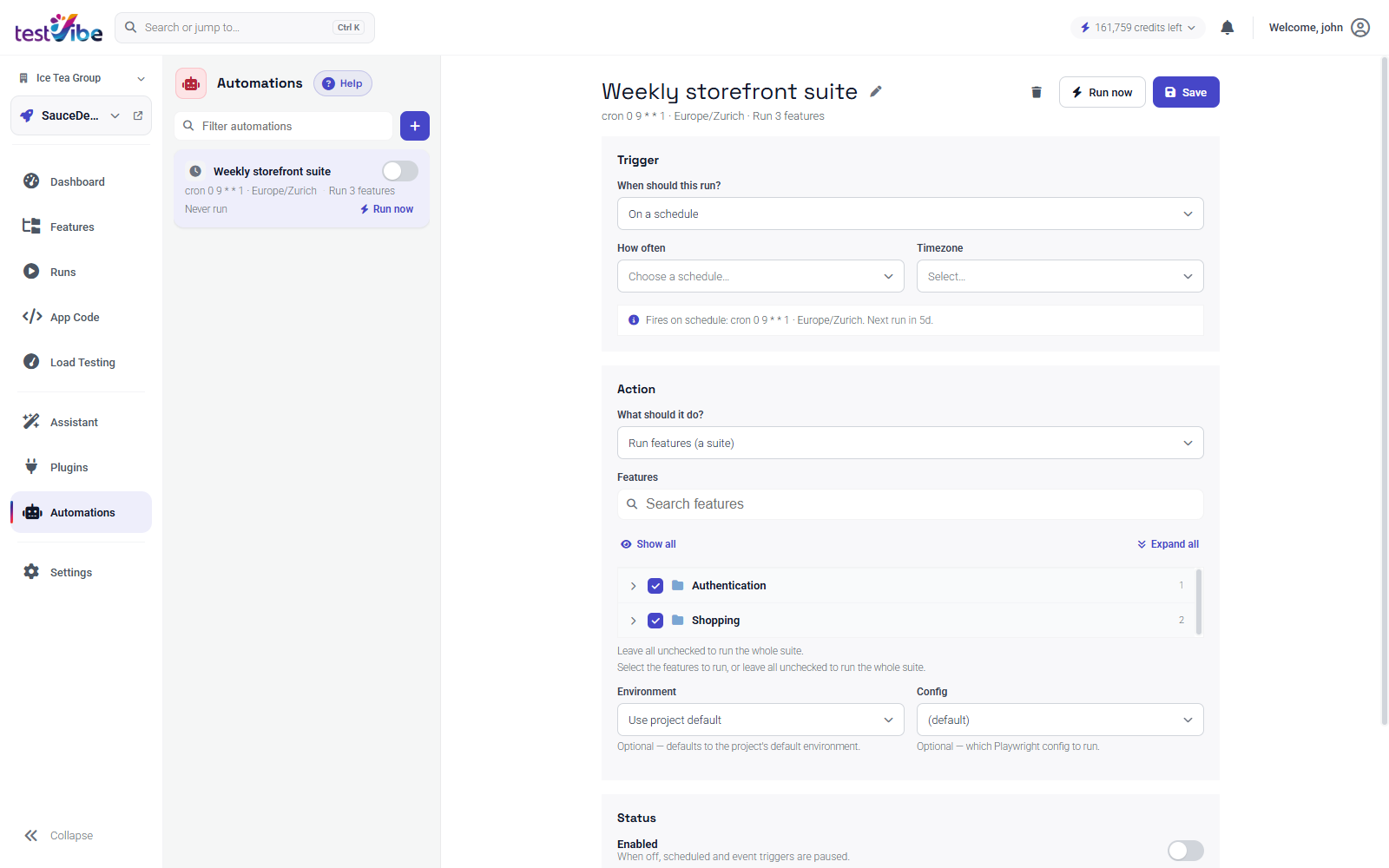
Pick the Daily at 02:00 schedule preset and a timezone your team actually lives in — it's one of several presets under the schedule trigger, a friendlier way to pick a cron-based cadence without hand-writing one.
Two details matter more than the exact hour:
- Scope the run deliberately. A nightly job is the right place for broad coverage, so leave the feature selection empty to run the whole suite, or pick the groups that cover your core journeys. TestVibe dispatches the whole selection as a single suite run per firing — even a hundred features produce one result row, not a hundred, so history stays readable and the automation's "last run" always points at one outcome.
- Point it at a stable environment. Give the automation an explicit staging or QA URL rather than a production one you can't control. A staging box that resets overnight, or a preview that a deploy tears down mid-run, will fail for reasons that have nothing to do with your app — and a nightly run that cries wolf gets ignored within a week.
Before you trust the schedule, use Run now once. It dispatches immediately and confirms the URL, the feature selection, and the Playwright config all work together. Fix anything that surfaces there, then walk away and let the cron do its job.
One more safety property worth knowing: scheduled runs are designed to avoid overlapping themselves. If last night's run is somehow still active when the next one is due, the new attempt may be skipped rather than stacking a second copy on top.
Make a green night silent
The fastest way to kill a nightly suite is to alert on every run. If a passing night lights up Slack, people mute the channel, and the one night that actually fails scrolls by unread. The goal is inversion: silence on green, a loud signal on red.
In current production, Personal notification settings manage email delivery. Set the Test runs category to Failures and check the account-wide mute setting. Use a test email only when you intend to send it. Legacy chat-channel records can remain stored, but adding or editing Slack, Google Chat and Teams webhooks is not the current Personal settings workflow. Scheduled outcomes use the same notification filtering as manual runs.
For a shared team channel rather than per-person delivery, Mattermost is configured once per project: set a MATTERMOST_WEBHOOK_URL secret and control the outcome filter with a MATTERMOST_NOTIFY variable — failures posts only red nights, off disables posting without removing the webhook.
MATTERMOST_NOTIFY=failures # post to the team channel only when a run failsNow a green night produces nothing. When you do get pinged, it means something — and that is the whole point of the ritual below.
The morning triage ritual
A failed nightly run is a question, not a verdict. The ritual is a fixed path from "the suite went red" to "here's what I'm doing about it," and it should take minutes, not your morning.
1. Read the run status, then drill in. A run is marked failed if even one test failed. Open the Runs list, find the red run, and go to the Features tab to see which rows actually created that outcome. The shape of the failures tells you a lot before you open anything:
| Pattern | What it usually means |
|---|---|
| One failed row | An isolated issue — start with that test's evidence. |
| Several failures in one group | A shared flow or data problem for that feature area. |
| Many rows failing at the same step | A common prerequisite: login, environment state, or seed data. |
When many rows fail at the same prerequisite, fix the prerequisite first and re-run — don't waste time editing individual tests that were never the real problem.
2. Open a failed row and read top to bottom. The failure panel shows the Playwright error text, the spec location, retained screenshots and video when available. Use the screenshot alongside logs and other evidence to test hypotheses: the wrong page means navigation or environment; the expected page with a failed assertion means the test expectation drifted; a missing-selector or timeout error means the UI changed or the app was slow.
3. Use Debug with AI when the panel isn't enough. That button opens the full action-by-action Playwright trace with an AI assistant docked beside it that suggests a diagnosis to verify — DOM snapshots, network timing, and console errors in one place, without you spelunking through a raw trace by hand.
4. Re-run the smallest useful scope. After a fix — a code change, an updated expectation, or refreshed credentials — use Re-run to reopen the composer pre-scoped to that run, narrow it to just the failed tests, and start. You get a fast confirmation, and the original run stays in history for a before-and-after comparison.
Keeping nights green
Triage handles a single bad night. Staying green is about the trend.
- Chain a smoke check into the full pass. Use a When a run finishes trigger set to fire only on
passed— a quick smoke run at 01:45 that, on success, hands off to the full regression suite. If the smoke fails, the heavy run never starts and you save the noise. - Treat repeat flakiness as a bug, not weather. A test that fails one night in five is worse than no test, because it trains the team to ignore red. Fix it or pull it from the nightly scope until it's stable.
- Write assertions that wait instead of guess. Some flakiness comes from timing; investigate data, infrastructure and genuine intermittent defects too. Web-first assertions auto-retry until the condition holds, which removes the arbitrary sleeps that fail under a loaded environment:
// Flaky: reads state once, at an arbitrary moment
expect(await page.locator('.cart-count').textContent()).toBe('1');

// Stable: retries until the UI settles or times out
await expect(page.getByTestId('cart-count')).toHaveText('1');
A nightly suite is only as valuable as your trust in it. Schedule one broad run against a stable environment, alert only on failure, keep a fixed triage path, and quarantine the tests that lie — do that, and a green morning genuinely means green. Get early access to set up your first scheduled run, or read the Automations guide for the full trigger and action reference.