The same page can pass in Chromium at 1920x1080 and break in WebKit on a 390-wide phone. A sign-in form that fits comfortably on desktop overlaps its own button on mobile; a layout that reflows cleanly in Chrome throws a hidden-element error in Safari. The point of running one suite across browsers and viewports is to catch those differences on purpose instead of hearing about them from a user.
In TestVibe, that coverage is expressed through run configurations. This guide covers what a configuration controls, how to attach several to a single run, what happens when a run fans out across them, and how to read the results without drowning in duplicated rows.
What a run configuration controls
A run configuration is a saved Playwright profile: it decides how Playwright opens your app for a run. Each one bundles a set of execution settings, and the ones that matter most day to day are:
| Setting | Example values |
|---|---|
| Browser engine | Chromium, Firefox, WebKit, or a named project |
| Viewport | Desktop 1080p, tablet, mobile portrait, or a custom size |
| Evidence | Screenshots, videos, traces, console logs, network records |
| Reporter | HTML, JSON, JUnit, blob, or console output |
The three browser engines map to the browser families your users actually run. Chromium covers Chrome-like browsers for everyday validation, Firefox covers Firefox behavior, and WebKit is your Safari-like coverage. WebKit adds engine coverage; it is not proof of behavior on every Safari version or physical iPhone.
Viewports work the same way. TestVibe's presets cover the common shapes: mobile portrait at 393x852, tablet at 834x1194, and desktop 1080p at 1920x1080. A project's Playwright config can define custom sizes on top of those. A responsive layout that swaps its navigation at a breakpoint deserves at least one narrow viewport in the mix; a desktop-only admin tool probably does not.
The default template includes desktop Chromium with trace, screenshot and video capture enabled. Check the configuration actually selected; additional template configurations and project choices can differ. Everything past that (a WebKit profile, a mobile responsive profile, a broader release preset) is coverage you add deliberately.
Where configurations live
Configurations are managed under Settings → Playwright. Each one is backed by a real Playwright config file in your project, and the settings page mirrors those files so a run loads them exactly as they are on disk.
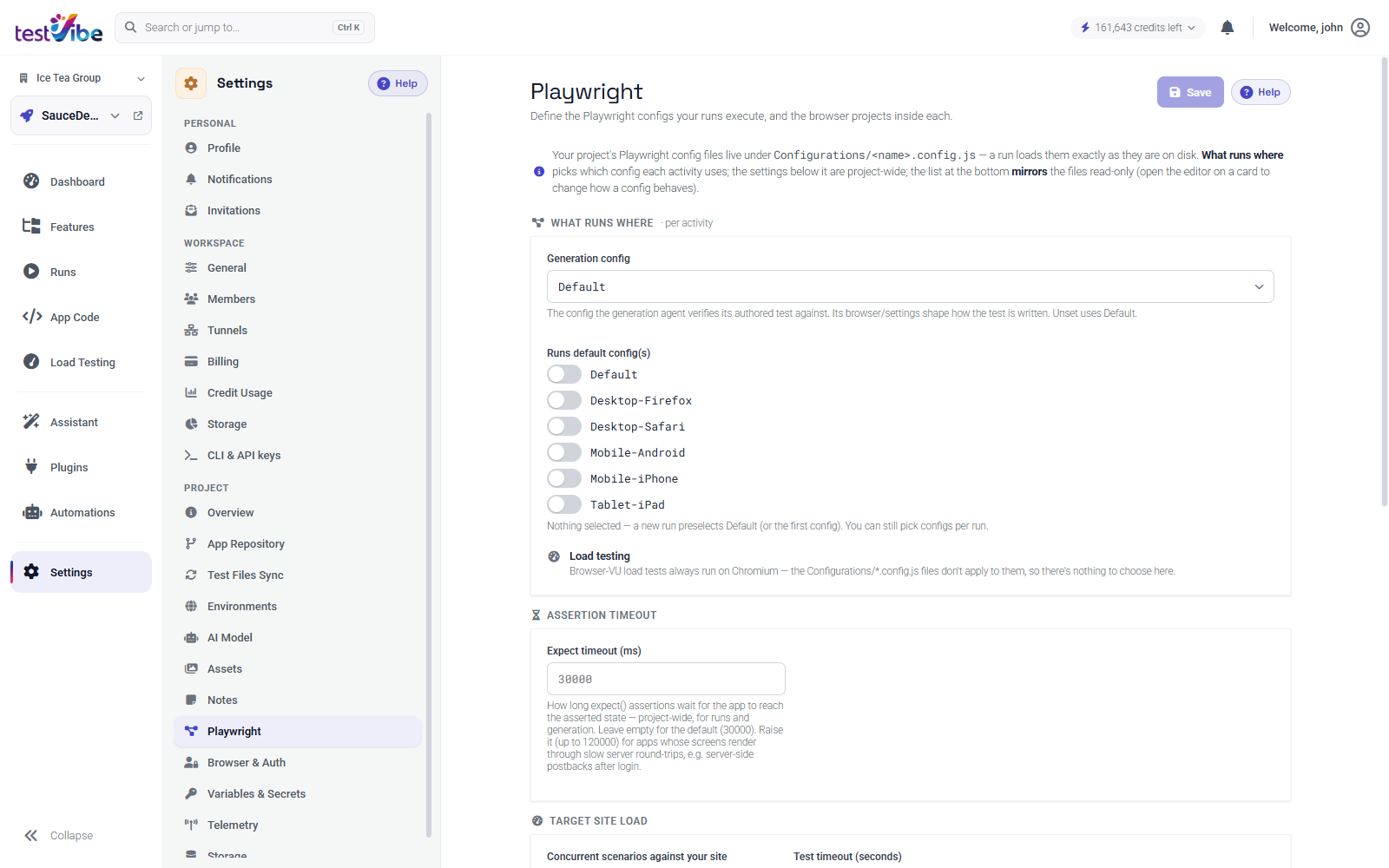
Two project-wide defaults live on this same page and every run inherits them unless a run overrides them. The first is Concurrent scenarios: the "Auto" concurrency a run uses when you don't set anything else. The second is the Expect timeout, which is how long a web-first assertion like expect(locator).toBeVisible() waits before failing. It defaults to 30 seconds and applies to every generated spec without hardcoding a value in the test. If your app renders post-action screens through slow server round-trips, raise it here rather than editing individual tests.
Attaching several configurations to one run
You don't run each browser as a separate job. You attach multiple configurations to a single run and let it fan out.
- Open Runs and select New Run.
- Choose the tests you want to execute.
- Under Environment, pick a configured environment or a Custom URL.
- Under Configurations, check one or more Run Configurations.
- Optionally set Execution to control concurrency.
- Start the run.
Here's the rule that governs everything downstream: the selected scenarios are scheduled for each configuration you check. Named Playwright projects, retries and filtering can also affect execution counts. For ten scenarios with one named project per configuration and no retries, three configurations produce thirty executions. Each configuration you check is attached to the run and recorded with it, so a re-run later reproduces the same browser and viewport coverage, as long as the configurations still match what you want.
When a run fans out
Because each test runs once per configuration, the executable row count reflects tests × configurations, not the test count. That's worth internalizing before you launch, because it changes both how the run looks and how much it costs.
At the very start, TestVibe may only show the feature files you selected. The detailed per-execution rows appear once the cloud test session builds the execution plan, and that's when the multiplication becomes visible: a suite that looked like twelve tests expands into thirty-six rows across three configurations.
That fan-out is also why the Execution control matters more on multi-config runs. It decides how many scenarios run concurrently against your site for that run:
| Option | Behavior |
|---|---|
| Auto | Uses the project's default concurrency from Settings → Playwright. |
| Sequential | One scenario at a time — useful when the target can't handle parallel traffic or you're debugging shared state. |
| Custom | An explicit cap for this run only, without changing the project default. |
A cross-browser full-suite run can open a lot of sessions at once. If the target is a shared staging box, dropping to Sequential or a modest Custom cap trades a longer run for gentler load.
Reading per-config results
The multiplied rows are also the payoff: the failure pattern tells you what kind of bug you have. Start with the overall run status, then read the rows for shape:
- The same test fails in every configuration. Check shared app behavior, credentials, environment state and the test’s expectations. Fix the test or the app behavior it exercises.
- Only one browser or one viewport fails. That's the compatibility signal you added the extra configuration to catch: a WebKit-specific layout issue, or an element that only overlaps at a narrow width. Review that configuration's browser and viewport before assuming the test is wrong.
Open a failed row to inspect its screenshots, video, trace, console output, and network detail. Because every row is scoped to one configuration, the evidence you open is from exactly that browser and viewport, with the recorded configuration available for comparison.
Configure a small, clear set (for example a desktop default, a responsive profile and a cross-browser profile) rather than a sprawl of overlapping presets. Get early access to try it against your own app, or read the full reference on choosing browsers, viewports, and configurations.