Most test tooling makes you do the reading. You open a failed run, scroll the log, cross-reference the trace, then decide what to fix. The TestVibe assistant is a project-aware chat that can retrieve your features, runs, results, and connected app code as context, so you can ask a question in plain language and get an answer grounded in your actual suite.
This guide covers what the assistant can do and how to prompt it well.
Where it lives
The assistant is reachable from the navigation rail, and conversations are saved per project so you can return to an earlier thread from the list. It always works against the currently selected project, so switch projects from the header first if you're asking about a different app.
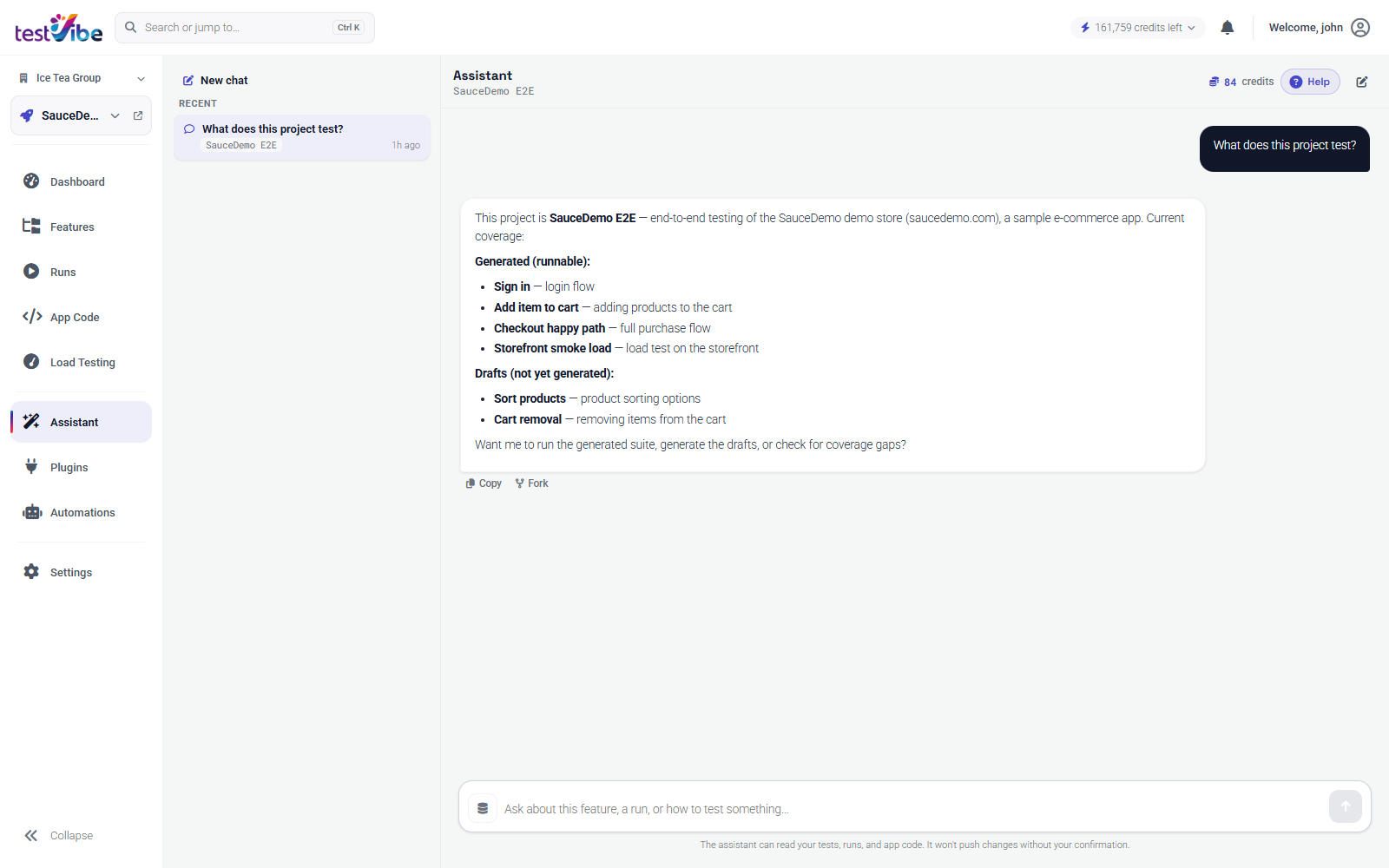
You don't have to start from the rail every time. Several entry points seed a conversation for you:
- Search bar → "Ask assistant" sends whatever you typed in the command bar (Ctrl/Cmd+K) as a new conversation.
- Per-view Ask AI buttons on Runs, Features, and Load results seed a thread with a data-rich summary of the selected run, feature, or load result already attached.
- Debug with AI on a failed test result opens the trace viewer with a docked assistant that diagnoses the failure.
Seeded conversations render as a compact card (an icon, a one-line summary, and a "Show full prompt" link) instead of a wall of raw instruction text. The assistant still receives the full prompt; the card just keeps the transcript readable. Click "Show full prompt" if you want to edit and resend it to steer the analysis.
Explaining failures
This is the everyday use. When a run goes red, you can ask the assistant to read it for you instead of parsing the log yourself:
Why did run #25 fail?The assistant reads the run's results and evidence and can suggest a likely cause to check against the evidence: a selector that no longer matches, a step that timed out, an assertion that flipped, rather than a generic "a test failed." Because it has the run attached, the answer is specific to your suite, not boilerplate testing advice.
For a failing individual result, Debug with AI goes a step further. It opens the trace viewer with the assistant docked alongside, so you can see the failing step and its context while the assistant explains what went wrong. From there it can propose a fix to the test, and a source-code pull request additionally requires a supported write integration and explicit authorization; a read-only git connection alone does not provide that.
A good failure prompt gives the assistant a specific target. Compare:
# vague — the assistant has to guess which run
Something is broken, can you look?

# specific — points at a run it can read
Run #25 failed on the checkout scenario. What changed, and is it a
test problem or an app problem?
Running ops actions
The assistant isn't limited to talking. It can use in-app tools to prefill and open dialogs for you, for example opening the Run dialog with suggested settings so you don't have to build the configuration by hand:
Set up a run of the checkout suite on mobile Chrome.Some tools prepare dialogs; others can execute requested operations. Check the tool scope and request only the actions you intend. The assistant can also navigate to relevant views.
Ask-AI threads opened from a run, feature, or load result carry a context drawer summarizing the attached entity, so follow-up actions stay anchored to the thing you were looking at.
Suggesting the next tests
The most useful long-run prompt is asking the assistant what you're missing. From the ✨ suggestions menu, Explore my app and suggest tests drives a real cloud browser against your site and proposes tests, and this is where TestVibe's honesty pitch matters:
Exploration can save suggested Gherkin drafts based on observed behavior. A suggestion is not proof that an executable spec has passed verification. Accept a draft, generate it where needed, and inspect the completed generation and run evidence. Suggestions can arrive during exploration; review saved drafts before continuing an interrupted session.
You can also just ask for coverage help conversationally, or have it tighten Gherkin you already wrote:
Tighten the scenarios in NewFeature.featureIt proposes Gherkin edits you can review before saving. Same pattern as everywhere else: it drafts, you decide.
Prompts worth keeping
A quick reference for the phrasings that land well:
| Goal | Prompt |
|---|---|
| Understand a failure | Why did run #25 fail? |
| Summarize a load test | Summarize load test run #31 |
| Improve existing scenarios | Tighten the scenarios in NewFeature.feature |
| Find coverage gaps | Explore my app and suggest tests |
| Prep a run | Set up a run of the login suite on desktop Firefox |
If you're not sure where to start, the empty chat state groups quick actions under Discover, Generate, Diagnose, and Scale & automate (the common starting points, one click each).
The honest limits
The assistant is grounded in your project, which makes it good at questions about your suite and weak at questions it has no data for: it reads what's in TestVibe, not your intentions. It can dispatch runs and invoke write tools when you ask it to. State the scope explicitly: a request to explain a failure is different from permission to edit files, spend credits, or open a PR. Treat it as a fast reader and a competent first-drafter, and keep the approval step as your review gate. That division of labor is the point: it does the tedious reading, you keep the judgment.
Want to try it against your own app? Get early access, or read the assistant docs for the full view reference.