You wrote the tests. AI generated the Playwright code. Every run happens in an isolated cloud sandbox against your URL. The last manual step left is starting the run — and that's the step that gets skipped on busy days, which is exactly when regressions slip through.
Automations close that gap. Each automation pairs a trigger — a time-based cron schedule, or another run finishing — with an action: run a feature suite, run a load test, or run an AI assistant job. Set it once, and TestVibe keeps exercising your app while you build it.
The two trigger modes
Time (cron). Pick a schedule preset and a timezone — no raw cron syntax required. The presets cover the useful cadences:
| Preset | Good for |
|---|---|
| Every 15 minutes | Fast feedback on a highly active test environment |
| Hourly | Frequent monitoring without running constantly |
| Daily at 02:00 | An overnight health check before the workday starts |
| Daily at 09:00 | A morning health check for the team |
| Weekly (Mon 06:00) | A weekly regression pass at the start of the week |
Schedules are timezone-aware, so "daily at 02:00" means 02:00 where your team is, not 02:00 UTC (unless that's what you pick).
When a run finishes. Event triggers fire after another run completes — optionally only when it finished passed or failed. This is how you chain coverage: a fast smoke suite runs on a schedule, and a full regression suite triggers automatically when the smoke run passes. No hand-off, no forgotten follow-up.
Create your first automation
Let's set up a weekly storefront regression.
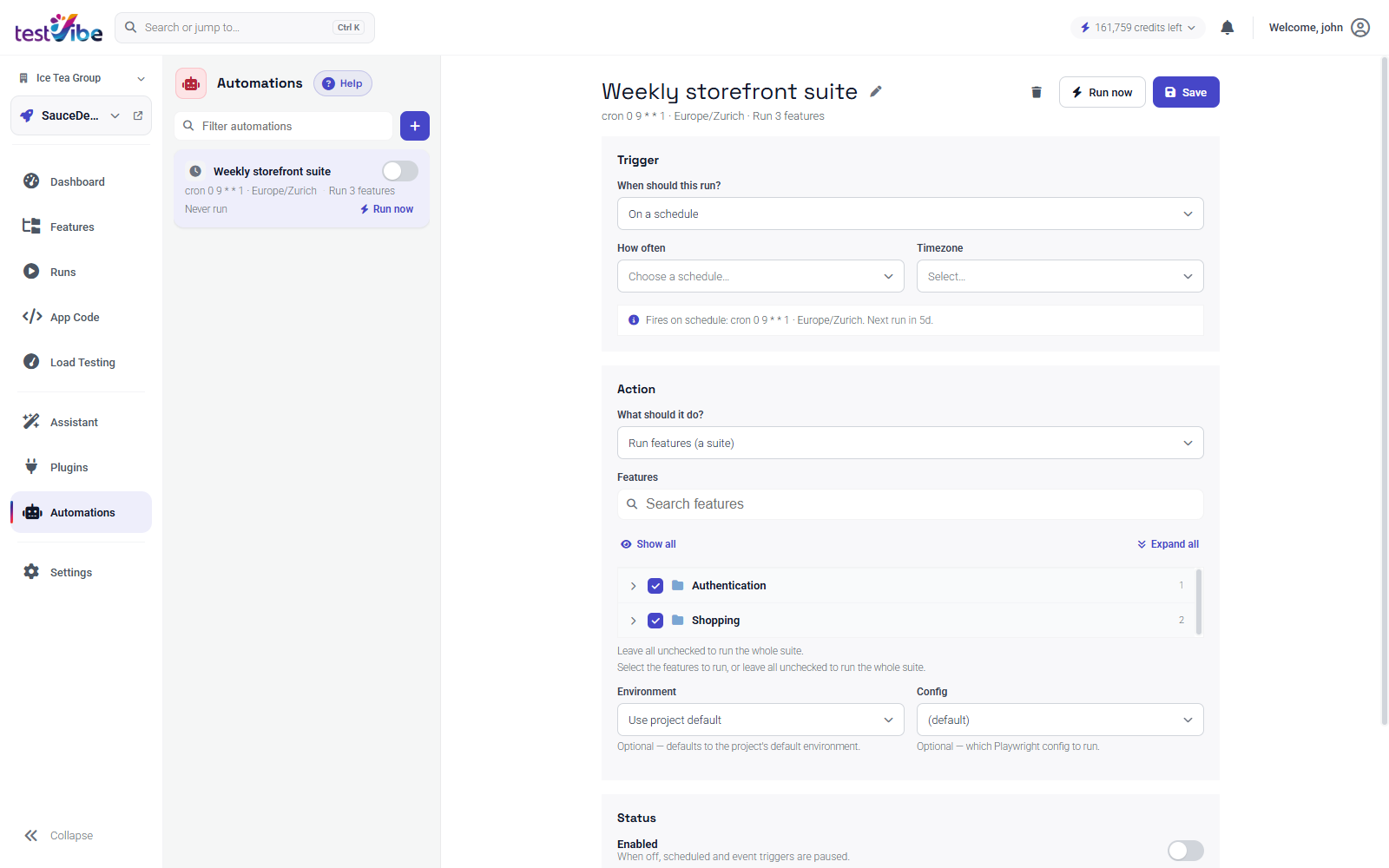
- Select Automations from the navigation rail.
- Select + (New automation) in the list rail and name it — say, Weekly storefront suite.
- Choose a Trigger mode:
- Time (cron) — pick a schedule preset ("How often") and a timezone. The editor confirms the schedule and shows when the next firing lands.
- When a run finishes — optionally filter to
passedorfailedoutcomes.
- Choose an Action:
- Run features (a suite) — set the site URL, pick the features to include, and choose a configuration. The feature picker groups features the same way your project does; check a group to include everything in it, or leave all boxes unchecked to run the whole suite.
- Run a load test — pick a load-test feature and an optional site URL.
- Run AI assistant — give the assistant a prompt to run headlessly, with an optional site URL and an email for the report.
- Make sure Enabled is on, then Save.
Two controls make this safe to trust:
- Run now dispatches the automation immediately — verify the URL, feature selection, and configuration work together before relying on the schedule. Each list entry also shows when the automation last dispatched.
- Enabled pauses or resumes the automation without deleting it. A disabled automation keeps its full configuration.
Point it at the right environment
An automation can use an explicit site URL or fall back to the project's site URL. Use explicit URLs for staging, QA, or preview environments — and point scheduled automations at a stable one. A staging URL that resets overnight will fail for reasons unrelated to your app, and a noisy schedule trains everyone to ignore it.
One firing, one run
A Run features action dispatches one suite run when it is accepted, even when it covers many features. A skipped or rejected firing does not imply a run occurred. The selected features dispatch together as a single suite run rather than one run per feature, so your run history stays readable and the automation's "last run" always points at one result.
Scheduled runs also avoid overlapping work: if a previous scheduled run is still active, the next scheduled attempt may be skipped instead of starting a second copy of the same run.
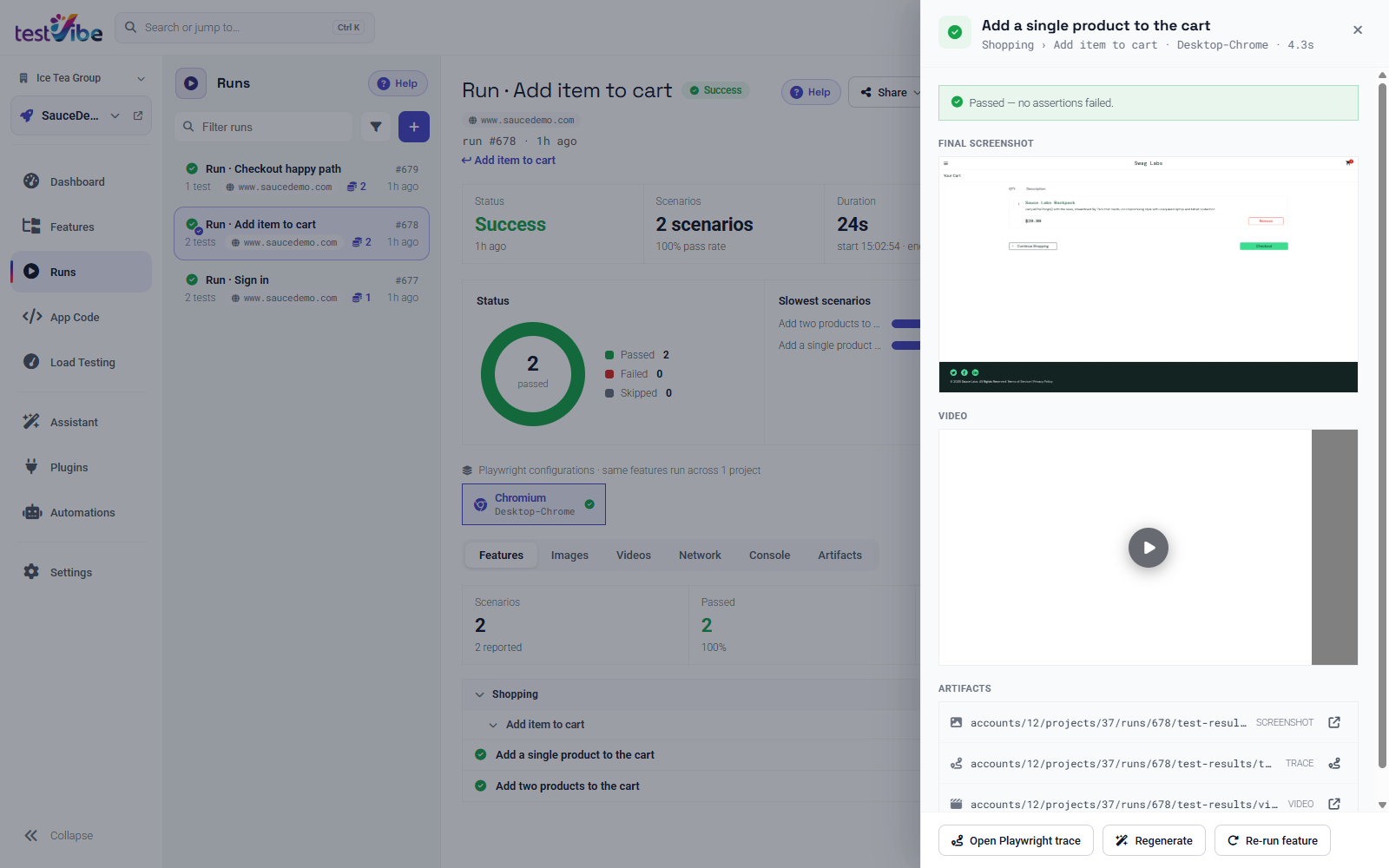
Every automation-produced run is a first-class run — the same detail page, per-scenario results, screenshots, videos, and Playwright traces you get from a manual run.
AI triage: review a suggested diagnosis
New in TestVibe: AI triage on failure, an opt-in setting on Run features automations. When a run that the automation triggered fails, TestVibe's headless assistant investigates before you even open the app — it reads the per-scenario Playwright errors, can browse your site to confirm what it sees, and can produce a short suggested diagnosis naming the failing scenario. That diagnosis still needs review and can be skipped or fail.
The triage surfaces in three places:
- The run detail page shows an AI triage card with a suggested diagnosis, right under the status tiles.
- The failure notification carries the summary on every channel — instead of just "3 failed," the message can include an "AI triage: …" line summarizing the investigation.
- The automation's run history badges triaged firings, linking straight to the run.
Triage runs on the same metered, credit-gated assistant as the rest of TestVibe's AI. If your workspace is out of credits, the triage is skipped honestly — the notification says "AI triage skipped — out of credits" rather than silently omitting it. Each failed run is triaged exactly once; there are no retry loops burning credits in the background.
Use the triage summary as a starting point. Compare it with the failing scenario and retained evidence before deciding what to fix.
Notifications: hear about it where you work
Automation results flow through the same notification system as everything else in TestVibe. In Settings → Notifications (under Personal), each channel controls where results are delivered and, per category, whether you get All, Failures only, or Off:
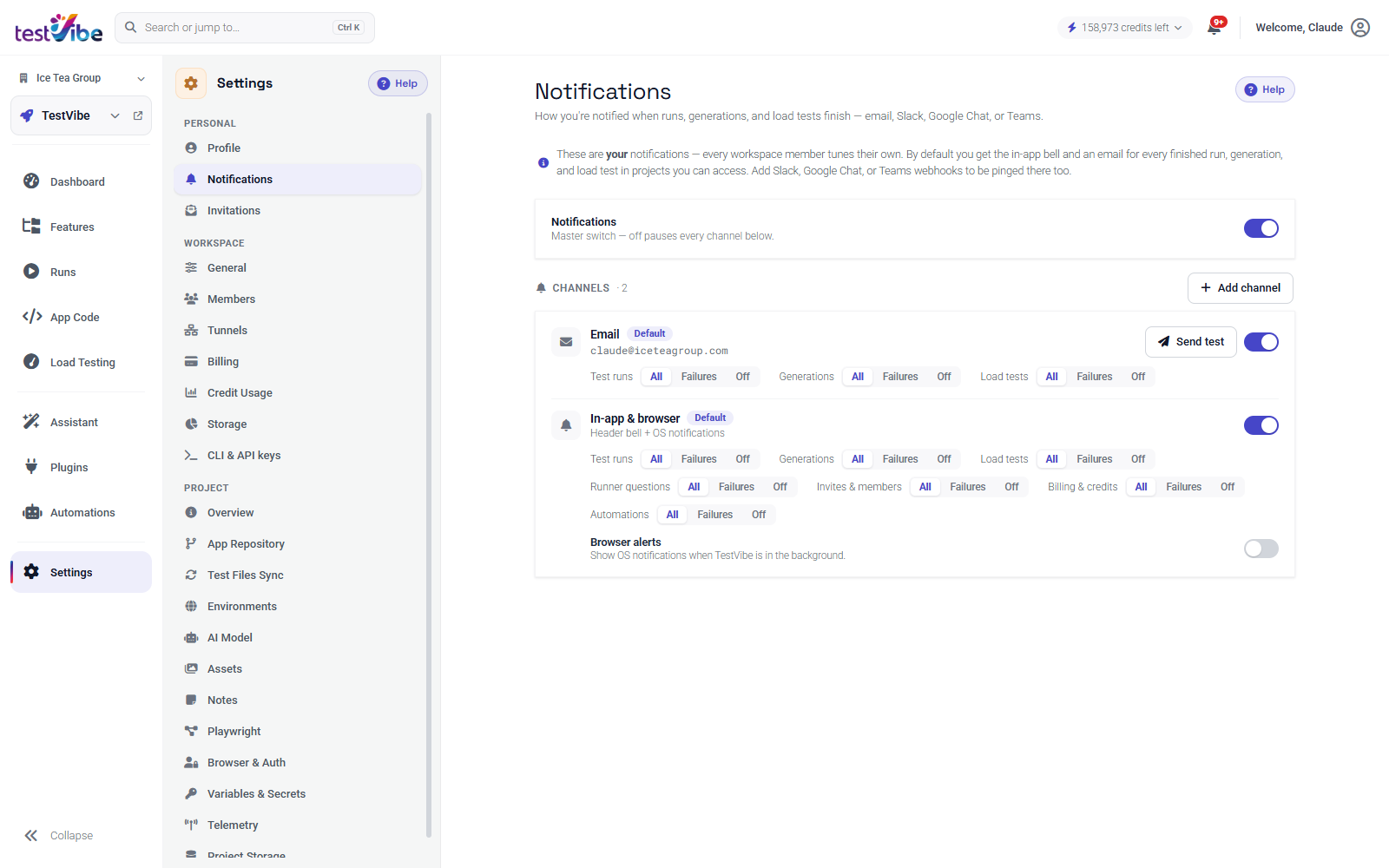
- In-app & browser — the header bell (with an unread count and a live "In progress" section), plus opt-in browser alerts that fire when the tab is in the background. The Automations entry in the navigation rail badges unread activity too.
- Email — your account email or a custom address.
- Slack / Google Chat / Microsoft Teams — paste an incoming-webhook URL, and use Send test to verify it before trusting it.
Added channels start at Failures only — a sensible default for scheduled work, where a nightly green run is noise and a red one is signal. There's also a project-scoped Mattermost integration: set a MATTERMOST_WEBHOOK_URL project secret and the whole team shares one channel for run summaries, with an optional MATTERMOST_NOTIFY variable to limit posts to failures.
One deliberate design choice: TestVibe doesn't blast your inbox for every automated firing. In-app surfaces track every outcome, and when you've opted into AI triage on failure, notification delivery still depends on enabled channel/category settings and the destination being available. Review triage and delivery status rather than assume every message arrived.
Start with one nightly suite
The recipe that pays off first is simple: one automation, Time (cron), daily at 02:00 in your timezone, running the whole suite against staging, with AI triage on. Review the firing and run outcome in the morning, including any skipped work or unavailable triage.
TestVibe is in early access — get early access and put your suite on autopilot. The Automations docs have the full reference.